Networking


...

Change DNS Settings in Windows XP


Sometimes you may want to override the default DNS (Domain Name Server) settings on your computer so you can specify which DNS server is used, or which IP address should be used for a particular domain. There are two ways to do this: Specify the DNS and map IP addresses.

(1) Specify the DNS to be Used

This method tells your computer which DNS to use for all your internet browsing. Most home users have this set to "automatic" and the DNS is provided by the user's ISP, but you can use any DNS you like (you can even make your own DNS if you're keen).

Before you start you will need to know the IP address of the DNS to use - if you don't know this you'll need to ask your system administrator or ISP.

To set your DNS, you need to find the Internet Protocol window.

For Users on a Dial-up Connection:
Go to My Computer>Dialup Networking.
Right-click your internet connection and select Properties.
A window will open - click the Server Types tab. Click TCP/IP Settings.
For All Other Users:
Go to Control Panel>Network Connections and select your local network.
Click Properties, then select Internet Protocol (TCP/IP).
Click Properties.

You will see a window like the one below - this is the Internet Protocol window. Select "Use the following DNS server addresses" and enter the desired DNS server(s) in the space(s) provided.

Internet Protocol Window

Note: To add more DNS servers, click Advanced then the DNS tab.

(2) Map IP Addresses

This method allows you to create settings for individual domains without altering your main DNS preferences. This is useful if you don't have access to a DNS or if you want to specify the location of a single domain without interfering with any of your other online activities.

Open the following file in a plain text editor such as Notepad:
C:\WINDOWS\system32\drivers\etc\hosts

The file looks like the one below. At the end of the file (in this case, under the localhost entry), enter the IP and domain you wish to specify. When your browser attempts to access a domain it refers to this file first - if the domain is found here then the specified IP address will be used. If the domain is not found here, then the normal DNS server (as specified above) will be used.

Hosts File


...

Setting up a Remote Session


This page explains how to set up a remote login session to another computer or Internet server. This allows you to perform various operations on the remote computer as if you were right there. Before you begin you will need the following details from your host or server administrator:

  • Server (host) name.
  • Login name and password.
  • Which type of protocol to use — usually Telnet or SSH (SSH is the better option because it is secure).

The next step is to choose a client program to conduct the session. We will use the example of Putty, a free application which includes Telnet and SSH for Win32 and Unix platforms, plus an xterm terminal emulator. You can download the program from the Putty Home Page: www.chiark.greenend.org.uk/~sgtatham/putty External Link

After downloading the putty.exe file, all you need to do is double-click the file name to open the program. A window will open like the one below:

Putty Configuration

Enter the host server name and protocol. The default port setting should work — contact your administrator if it doesn't. Then click the Open button. A new window will open like the one below:

Putty Login Prompt

Enter your username and hit the Enter key. You will then be prompted for a password — enter this and hit the Enter key again. Notice that your password will not be displayed as you type — this is normal.

After a brief pause you should see something like this:

Putty Shell Prompt

The last line is your shell login. The appearance of this line will vary depending on your server setup. You are now logged in and ready to begin the session. Enter commands as desired and hit the Enter key to send them.

The exact commands available will also depend on your server setup. For a list of common Linux server commands see Linux / Shell commands.

To end the session, enter the word "exit" at the prompt and hit the Enter key. This ends the session and closes the window.

Helpful tip: You can use your keyboard's Up and Down arrow keys to cycle through previous commands. This is a good way to save yourself having to re-type long commands — hit Up until you find the command you want to use, then hit the Enter key. Commands from previous sessions are also remembered.


...

Web Design


...

Publish (upload)


The final stage of construction is the upload. Using a file transfer program, you copy the entire website structure to the appropriate folder on the host server.

The window below is from the popular program WS_FTP LE, available from www.ipswitch.com.

FTP window

If you're familiar with file management systems such as MS Windows Explorer, then you won't have any difficulty with this package. The left window displays the site on your local drive, the right window displays the site on your host server. You simply guide the program to the appropriate folders and use the left/right arrows to transfer selected files.

Some site authoring applications have the option to publish directly to the web. This may be largely automated, such as the "Publish" command in Frontpage or the "Synchronise" command in Dreamweaver. These commands can identify files which have been modified since you last published and tell you which ones need to be updated. If you have a large site, this can be a huge time-saver.


That's the end of this tutorial. We hope it's been useful.


...

Hosting


Once you've created your web site and you can see that it works properly on your computer, you need to "publish" it to the internet so that other people can see it. Essentially you just need to copy the web pages from your computer to your host server.

Naturally, the first thing you'll need to do is to find a host server. There are many options available and finding the right solution isn't always easy. There are two main categories of hosting options: Free and Paid.


Free Host Servers

There are plenty of places on the internet which will host your site for free. Not surprisingly, there are catches. These may include:

  • Advertising banners. Most free services make their money by inserting advertisements into your pages. The advertisements may also appear in pop-up windows which activate whenever someone visits your site.
  • No domain hosting and ugly URLs. Free hosting doesn't usually allow you to use a domain name (eg www.myname.com). You will instead be assigned an address which could be very long and difficult to remember.
  • No support. If anything goes wrong or if you need any help, don't hold your breath. Chances are no-one cares.
  • Limited features. You will find that certain features aren't allowed.
  • No guarantee of service. From time to time free hosts simply shut down, either temporarily or permenantly. More often, certain features they offer are discontinued or they start charging for them.

Your best bet is to see what your ISP has to offer. Most ISP's have some sort of free web hosting option with their dial-up accounts.


Paid Host Servers

If the free services don't meet your needs then you'll be looking for a professional hosting service. Prices and features vary widly so shop around. Note that you don't have to use a host which is geographically near you - you can have your site hosted on the other side of the world.

Look for the following features:

  • FTP Access. This is the most common method of publishing your files to the host server and is offered on almost all serious hosting options. Make sure you know exactly how to access your host.
  • Technical Support. This is most important - does your provider offer help installing and running your site? Does this cost extra?
  • E-Mail. Exactly what e-mail facilities are included? Can you have multiple email addresses?
  • Statistics. Most hosts provide free statistics to see how many people are visiting your site.
  • CGI, PHP, etc. These are advanced features which allow you to add bells and whistles such as forms, dynamic content, discussion forums, etc. Not for the novice, but not so complicated that you can't learn. Many hosts have ready-made CGI features which you can add to your site with minimal fuss, or they may be able to add them for you.
  • Frontpage Extensions. If you insist on using Microsoft Frontpage, then you'll need Frontpage extensions. This is a set of files and protocols which allow beginners to use advanced features simliar to those offered by CGI. When used very carefully they can be a handy tool. However, Frontpage extensions have many limitations and are prone to inexplicable failure - use them at your own risk!

Domain Name

If you want your own domain name (eg www.myname.com) then you'll need to apply to the appropriate authority. This topic will be covered in a future tutorial.


...

Hosting


Once you've created your web site and you can see that it works properly on your computer, you need to "publish" it to the internet so that other people can see it. Essentially you just need to copy the web pages from your computer to your host server.

Naturally, the first thing you'll need to do is to find a host server. There are many options available and finding the right solution isn't always easy. There are two main categories of hosting options: Free and Paid.


Free Host Servers

There are plenty of places on the internet which will host your site for free. Not surprisingly, there are catches. These may include:

  • Advertising banners. Most free services make their money by inserting advertisements into your pages. The advertisements may also appear in pop-up windows which activate whenever someone visits your site.
  • No domain hosting and ugly URLs. Free hosting doesn't usually allow you to use a domain name (eg www.myname.com). You will instead be assigned an address which could be very long and difficult to remember.
  • No support. If anything goes wrong or if you need any help, don't hold your breath. Chances are no-one cares.
  • Limited features. You will find that certain features aren't allowed.
  • No guarantee of service. From time to time free hosts simply shut down, either temporarily or permenantly. More often, certain features they offer are discontinued or they start charging for them.

Your best bet is to see what your ISP has to offer. Most ISP's have some sort of free web hosting option with their dial-up accounts.


Paid Host Servers

If the free services don't meet your needs then you'll be looking for a professional hosting service. Prices and features vary widly so shop around. Note that you don't have to use a host which is geographically near you - you can have your site hosted on the other side of the world.

Look for the following features:

  • FTP Access. This is the most common method of publishing your files to the host server and is offered on almost all serious hosting options. Make sure you know exactly how to access your host.
  • Technical Support. This is most important - does your provider offer help installing and running your site? Does this cost extra?
  • E-Mail. Exactly what e-mail facilities are included? Can you have multiple email addresses?
  • Statistics. Most hosts provide free statistics to see how many people are visiting your site.
  • CGI, PHP, etc. These are advanced features which allow you to add bells and whistles such as forms, dynamic content, discussion forums, etc. Not for the novice, but not so complicated that you can't learn. Many hosts have ready-made CGI features which you can add to your site with minimal fuss, or they may be able to add them for you.
  • Frontpage Extensions. If you insist on using Microsoft Frontpage, then you'll need Frontpage extensions. This is a set of files and protocols which allow beginners to use advanced features simliar to those offered by CGI. When used very carefully they can be a handy tool. However, Frontpage extensions have many limitations and are prone to inexplicable failure - use them at your own risk!

Domain Name

If you want your own domain name (eg www.myname.com) then you'll need to apply to the appropriate authority. This topic will be covered in a future tutorial.


...

WYSIWYG Editors


WYSIWYG means "What You See Is What You Get". WYSIWYG web-page editors are similar to word processors and they allow you to construct a web page without using HTML instructions. You simply type in your text, add pictures, etc, using familiar toolbars and menus. The editor makes the HTML code in the background.

Dreamweaver screenshotSome well-known WYSIWYG web-page editors:

  • Adobe Dreamweaver
  • Microsoft FrontPage
  • Microsoft Publisher

The screenshot on the right is from Dreamweaver. Using the tools provided, you can add text, images and other elements directly onto the page.

These editors have obvious advantages such as speed and ease of use. However, there is a trade-off: They are not 100% reliable. If you examine the HTML code, you are likely to find mistakes and unwanted extra code. They also tend to be deceptive - you may think you're producing a fantastic page but find that it looks very different once you publish it. Remember that these editors usually use an approximation of how the page will look. To see your page as it really is you need to view it in a browser.

For these (and other) reasons, some professional web designers refuse to use WYSIWYG editors. Instead, they use simple text editors and compose all the HTML manually. However, it's becoming more common to use a mixture of both methods. A good WYSIWYG editor will give you the option to edit the HTML code manually. At the bottom of the Dreamweaver screenshot there is a panel which shows the HTML code for the page being worked on. As you edit the page in WYSIWYG mode, the HTML automatically updates. Likewise, you can edit the HTML code and the WYSIWYG view will be updated.


Recommendations

Finding the right software isn't easy. If possible you should try a number of different options - most good editors have free trial versions available. Here's what we think about a few leading contenders:

  • Adobe Dreamweaver is our tool of choice. It is widely considered to be at least best equal in the field of professional web design. It's also perfectly suitable for the novice. It's not cheap!
  • Adobe Contribute is a lower-cost sibling of Dreamweaver. It allows you to maintain and update your website as well as collaborate with other people who work with you.
  • Microsoft Frontpage is a good program for beginners, but be warned: this program has a whole range of flaws and does not have a good reputation in professional circles. Although it is a specialist web development program and is much cheaper than many of it's competitors, there are free programs available which offer essentially the same functionality without the hassles.
    Ironically we use Frontpage quite a lot, because people often send us Frontpage files to work on (one of the drawbacks - Frontpage websites often can't be edited with other programs). Believe it when we say Frontpage causes far more than it's fair share of grief.
  • Microsoft Publisher was originally designed for print media but has evolved to include web design. It has the advantage of being relatively cheap, versatile and familiar. Many people use it simply because they already have it installed. However it is not a specialist HTML editor and doesn't perform well. We don't recommend it.
  • Microsoft Word is similar to Publisher in that it was never originally designed for internet work. Although it can read and edit HTML documents, it does so very badly indeed. If at all possible, avoid it like the plague.
  • There are numerous free HTML editors available. Search the internet, visit web design newsgroups and spend some time deciding.


...

HTML Documents

At the heart of web page design is a computer language called "HTML". Although many new languages and technologies are superseding HTML, it still forms the foundation of virtually all websites. For this tutorial we will simplify the situation and pretend that all web pages use only HTML.

This is where you're probably thinking "Oh no, they don't expect me to learn about this do they?".
Well, yes and no. You don't actually need to know anything at all about HTML and if your ambitions aren't high then you can get away without it. However, if you're even slightly serious about making a good website then it will help you a lot if you understand a few basics. Don't be put off — it's not as intimidating as it sounds.

If you really can't be bothered, there are other options available (at a cost — more on that later).


HTML Documents

A web page is an "HTML Document". This is a file format which usually uses the extension ".html" or ".htm". For example, if you use Microsoft Word, you will usually save your files with the extension ".doc". However you can also save your files with many other extensions such as ".txt", ".wps" etc. Amongst the options is ".html".

HTML documents are actually just plain text, but contain snippets of code which carry vital information about how the page should be displayed. You can create such a document using any text editor - even a very simple one like Windows Notepad. In fact many web designers prefer to use simple text editors.

This is what a very simple HTML document looks like:


A Simple Web Page


This is about as simple as a web page can get.

To view an HTML document, you must use a browser (or similar software). The browser opens the HTML document in the background and "decodes" it before showing it to you. What you see is your browser's interpretation of how the web page should look (note: this is actually an important point - it's why you should test your site using a variety of browsers).

We won't go into any more detail at the moment, but at the end of this tutorial we'll show you how to learn more about HTML.

...

Introduction to Web Design

Introduction to Web Design

Important Note: Before taking this tutorial or attempting to build a website, you must have a basic understanding of the infrastructure which makes up the internet. You need to know what a server is, how websites exist and how people access them. If you don't understand these things you should not begin constructing your site! Instead you should take our short WWW Primer

which explains it nice and simply. Then return here and carry on...


The Cost of Creating a Website

At this point, many people will be wondering one thing: What will this cost? The good news is that, apart from your normal internet connection fees, it is possible to build and operate a web site at absolutely no cost. The bad news is that it's difficult to work like this and there are severe limitations to what you can do without spending money. This tutorial will offer options for various budget levels as well as those without any budget at all.


Methodology

Before we get down to business we should point out that there are two very different ways to make a website.

  1. The quickest and easiest way to make a site is to use an on-line "wizard" supplied by your internet service provider (ISP) or some other organization.
    To use this method, visit the internet address given to you by the organization providing the service. There you will be guided through a series of simple steps which will result in a site being constructed for you. The advantage of this method is that you don't need any skills other than using your browser. The drawback is that you are very limited in what you can do with this kind of website.
  2. The other approach is to construct a website on your own computer, then "upload" it to the internet so that other people can access it. This is the way most serious sites are made, and it's the method that this tutorial will cover.

Note: As the internet is such a complicated environment, these introductory tutorials tend to over-simplify explanations of how things work. You shouldn't take all our examples and illustrations too literally, but the information is conceptually sound. In time, you can choose to make the effort and build up a more technically accurate understanding.


Getting Started

It can all look very intimidating for the beginner, but if you know how to surf the internet and use a word processor then you should have no trouble making a website.

However, the single biggest mistake we see from beginners is trying to do too much too soon. Whatever your level of experience with computers and the internet, it's absolutely critical that you take things slowly and don't get ahead of yourself. Website construction is a minefield. If you have a map you'll be fine, but if you think it looks easy and go charging in you'll end up coming apart!

Many software applications will tell you that web design is easy. It's common to see claims such as "Make your own website in minutes -- no experience necessary!". In our opinion these claims are misleading -- you simply can't learn enough in a few minutes to have any chance of success. You can learn the basics in an hour or so, but you'll need a lot longer if you want to be any good.

People often ask us to recommend a computer program which will allow them to create fantastic websites. They sometimes show us a website they like and say "I want a program that will make sites like this." This scenario is somewhat like taking a photo of a house into a hardware shop and saying "I want a hammer which will make a house like this".

So here's the first reality check: There is no such thing as a program which makes good sites. Although some programs are more helpful than others, in the end it's up to you. Good websites aren't impressive because they were made with a good program, they are impressive because they were made by an experienced person. To make a great site you need to do a great deal of learning. There are no shortcuts.


...

Why use the same old icons when you can use thumbnails?

When you select a folder with bitmaps in Windows Explorer, it'll indicate all bitmap files using the same old icon. Did you know that you can make Windows display a thumbnail of those bitmaps instead?

  • Run "Registry Editor" (run RegEdit.exe)
  • Select "HKEY_CLASSES_ROOT\.bmp" and note the "default" value for it ("Paint.Picture" for example)
  • Now select "HKEY_CLASSES_ROOT\Paint.Picture" ("Paint.Picture" being the default value as explained above)
  • Double click on "default"
  • Type "%1" without the quotes and press ENTER
  • Restart Windows

Now when you view directories with bitmap files, you'll actually see a small (32x32 by default) representation of those pictures.


...

How to display your web site logo on the address bar and in the favorites list

Want to make your web site standout in crowded favorites lists in browsers and address bars? How about displaying your logo next to links to your site.

First, you have to create a logo for your site; a very tiny logo to be specific. The size of the logo should be 16x16 pixels and it should be saved as a Windows icon file (logo.ico for example).

...

Manfaatkan Directory Reddit.com: Promosi Blog


Di Internet banyak sekali disediakan directory online gratisan bertebaran, salah satunya Directory Reddit.com yang memberikan fasilitas tersebut, kenapa tidak kita manfaatkan untuk mempromosikan blog bisnis kita dengan cara men submit artikel / posting setiap kali di publish (terbit), khan lumayan buat tambahan backlink ke blog selain itu juga pastinya guna meningkatkan traffic pengunjung.

Kelebihan Directory Reddit.com dimana Directory tersebut adalah penganut paham dofollow, yang artinya setiap link posting blog yang kita submit ke directory reddit akan masuk hitungan/ diperhitungkan oleh search engine dalam hal ini google, dengan demikian akan mempengaruhi pageRank atau rangking peringkat blog bisnis anda.


Caranya pun gampang dan seperti biasa, kunjungi situs reddit.com kemudian mendaftar/ sing up setelah itu akan di verifikasi melalui email dan anda siap untuk submit artikel blog milik anda.

Btw, Ada baiknya sebelum submit baca dulu Artikel Bisnis Online saya sebelumya.! “Tips Submit Judul Postingan Blog ke Directory Digg.com” karena akan dijelaskan sedikit tips sebelum anda mensubmit artikel blog.

Soo.. buat sahabat blogger yang ingin promosi kan blog dan mendatangkan lebih banyak lagi traffic pengunjung !! Tunggu apa lagi..? Buruan daftar.!! Mumpung masih gratis lho.. hehe..


Take advantage Reddit.com Directory: Campaign Blog

On the Internet provided a lot of free online directory scattered, one Reddit.com Directory which provides the facility, why do not we take advantage of the blog to promote our business with the men submit articles / posts in each time you publish (publish), khan lumayan create additional backlink in addition to the blog of course also to increase visitor traffic.

Excess Reddit.com Directory Directory where the credo is dofollow, which means that each link blog posts that we submit to the directory entry count reddit akan / calculated by search engine Google in this case, therefore, will affect the ranking or PageRank rank your business blog.

Also how easy and as always, visit the site and register reddit.com / sing up after that will be verified via email and you're ready to submit articles online blog belong to your business.

Btw, I submit that before the first read my Online Business Articles sebelumya.! "Tips Blog Post Title Submit to Digg.com Directory" will be described as little tips mensubmit the article before you blog.

For more information about the 2 free directory information, please visit Blog Yusaindera.com because there you will find more tips and tricks of knowledge about the online site / web Social Bookmarking is peeled in detail.

Soo .. make friends Online Business Blog bloggers who want a campaign blog and bring more traffic visitors! .. What are you waiting for? Buruan list.! Mumpung still free lho .. hehe ..


...

Download Rapidshare tricks many times


Waw .... see the title of the post is quite funny and out of the concept of my blog, but why not because I want to share with friends.

at first I try always looking for tricks or how to download it as Rapidshare has premium account. (mean repeatedly ), do indeed kadang2 successful. But it's not long, so perhaps all is teman2 on how the system is protection of the brothers Rapidshare .. he he ..

Now I finally do meet again this time very simple and easy to diperaktekkan, first friends siapin first download software that quickly ( 'Someone is demon'. As IDM, FDM and lain2. Ya. I do not have what jg .. . aja directly to the second (this link) and enter the address Rapidsahre downloaded, wait until the moment have any posts Download your file.
And the third direct click aja ..!!! zjrenkKK ...
Iini can berkali2 Loch jd ... I need to queuing for the rich like BLT (Direct Cash Assistance).

When the download is in progress and first want to download more that I can try to change its proxy & port! can check in here.! search that is still aktiv.
I have this trick peraktekkan almost 2 months now and secure the safe-aja.

Please note I do not guarantee this trick can be longstanding. but the experience is a trick that I have been using. yA Although only 2 months ..

now try to friend-2 peraktekkan I have sharing our comments ...
smoga successful ..................!!!!

Trik Download Rapidshare Berkali-kali

Waw....melihat dari judul posting memang agak lucu dan keluar dari konsep blog saya, tapi tidak mengapa karena saya ingin share sama teman-teman.

Oke lanjut langsung aja ya kita kepermasalahan..
pada awalnya saya coba-coba selalu cari cara atau trik buat download di Rapidshare seperti layaknya memiliki account premium. (maksudnya berulang-ulang gito loch.."gak nunggu satu2"), memang sich kadang2 berhasil. Tapi itu tidak berlansung lama, ya mungkin teman2 semua sudah pada tau bagaimana sistem proteksi dari pihak Rapidshare bersaudara.. he he..

Nah akhirnya saya ketemu lagi caranya kali ini sangat simpel dan gampang untuk diperaktekkan, pertama teman-teman siapin dulu sofware download yang cepat ('biar ngebut maksudnya'>.Seperti IDM, FDM dan lain2. ya. klo gak punya jg tidak apa... kedua langsung aja menuju (link ini) dan masukkan alamat Rapidsahre yang mau didownload, tunggu sebentar sampai ada tulisan Download your file.
Dan yang ketiga langsung aja pencet..!!! zjrenkKK...
Iini bisa berkali2 loch...jd gak perlu antri kaya mau bagi BLT(Bantuan Langsung Tunai).

Apabila proses download yang pertama sedang berlangsung dan ingin download lagi ternyata gak bisa coba ganti proxy & Port nya!! dapat di cek disini.! cari yang masih aktiv.
Trik ini sudah saya peraktekkan hampir 2 bulan dan sampe sekarang aman-aman aja.

Mohon diperhatikan saya tidak menjamin trik ini dapat dipakai berlangsung lama. tapi menurut pengalaman trik ini yang paling lama saya sudah pernah gunakan. yA Walaupun cuma 2 bulan..

sekarang coba teman-2 peraktekkan klo ada komentar kita sharing...
smoga berhasil..................!!!!


...

Strategi Forex


1. Strategi Perangkap 2 Arah
Teknik perangkap seperti ini cukup populer di kalangan trader Marketiva dan sangat menguntungkan bila diterapkan saat event-event ekonomi penting. Tidak memerlukan indikator, yang diperlukan hanya kemampuan untuk memasang harga order (pesan harga). Bila belum tahu cara mengorder harga pelajari dulu di sini KLIK Dan akan lebih baik lagi bila Anda memiliki pengetahuan Fundamental analisis.

Waktu trading adalah saat US open sekitar jam 19.00 WIB (GMT +7) atau sesuai dengan keluarnya data ekonomi penting dari Amerika. Untuk mengetahui berita dan data ekonomi yang akan keluar pada hari itu, saya sarankan Anda menyempatkan diri melihat Calender harian di http://forexfactory.com di sini Anda bisa dengan mudah melihat data ekonomi yang akan keluar, jam berapa serta seberapa pentingnya data tersebut.

Data ekonomi yang cukup penting dan ditunggu banyak orang /trader di sini biasanya adalah data-data ekonomi NFP (Non Farm Payroll), CPI Core (Consumer Price Index) dan pengumuman dari FOMC tentang kenaikan suku bunga. NFP yang diumumkan setiap hari Jum’at pertama setiap bulan contohnya bisa membuat pergerakan harga GBP/USD kurang lebih 200 pips. Sangat menarik kan?

Ini Strateginya:
Lihat Kalender Economic Harian, yg biasanya di upgrade mingguan di http://forexfactory.com Contoh trading dengan NFP mis: pada hari Jumat pertama bulan itu ada data tentang NFP yang akan dirilis di Amerika jam 19.30 WIB. Di http://forexfactory.com Anda bisa menyesuaikan waktu Amerika dan Jakarta (WIB) dengan jalan mengganti time periode menjadi +7 otomatis calendar forexfcatory akan menyesuaikan dengan waktu Jakarta.

Buka platform trading Marketiva Anda. Sebaiknya bila berita ekonomi akan dirilis jam 19.30 WIB Anda sudah online 30 menit sebelumnya untuk melakukan persiapan. Sebelum jam 19.30 WIB biasanya pergerakan harga tidak terlalu banyak karena cenderung pelaku pasar sedang berita yang akan diumumkan nanti.

Lima menit mendekati waktu 19.30 WIB yaitu jam 19.25 WIB pasanglah dua order posisi sekaligus. Yaitu posisi BUY dan SELL. Anda harus lihat harga pada saat itu. Untuk memasang harga order tambahkan 40 pips untuk posisi BUY dan kurangi 40 pips untuk posisi SELL. Lalu pasang Sotp Loss 30 pip, Target profit pasang 50 pip atau terserah Anda bila yakin dengan pergerakan harga saat itu dan ingin mendapatkan keuntungan yang maksimal.

Contoh cara memasang perangkap di Marketiva. Misalnya pada saat itu harga GBP/USD bergerak di sekitar 1.7230

Pasang posisi pertama yaitu “BUY”

Klik tab “Orders” pada platform Marketiva Anda, lalu klik “New” maka akan muncul tab isian:

Instrument = Isi dengan “GBP/USD”
Buy/Sell = Pilih “Buy”
Price = Masukan harga “1.7270” (dari 1.7230 + 0.0040 (+40 pip))
Price Type = Pilih “Stop”
Quantity = Isi jumlah uang yang ingin Anda transaksikan (ingat leverage 1:100)

Bila transaksi $1 maka masukan nilai 100 pada kolom Quantity
Bila transaksi $5 maka masukan nilai 500 pada kolom Quantiy
Bila transaksi $10 maka masukan nilai 1000 pada kolom Quantity
Bila transaksi $200 maka masukan nilai 20000 pada kolom Quantity, dst

Exit Stop Loss = Isi dengan "1.7240" (dari 1.7270 - 0.0030 (30 pip)
Exit Target = Bila ingin target profit 50 pip masukkan "1.7320" (dari 1.7270 + 0.0050)
Desk = pilih "Live" jika ingin trading dengan uang sesungguhnya pilih "Virtual" jika hanya ingin trading simulasi

Klik “OK” Transaksi Anda langsung terkirim dan tercatat di bagian Order

Pasang posisi ke-dua yaitu “SELL”

Klik tab “Orders” pada platform Marketiva Anda, lalu klik “New” maka akan muncul tab isian:

Instrument = Isi dengan “GBP/USD”
Buy/Sell = Pilih “SELL”
Price = Masukan harga “1.7190” (dari 1.7230 - 0.0040 (-40 pip))
Price Type = Pilih “Stop”
Quantity = Isi jumlah uang yang ingin Anda transaksikan (ingat leverage 1:100)
Exit Stop Loss = Masukan harga 1.7220 (dari 1.7190 + 0.0030 (30 pip)
Exit Target = Bila ingin target profit 50 pip masukkan 1.7140 (dari 1.7190 - 0.0050)
Desk = pilih "live" jika ingin trading dengan uang sesungguhnya. Pilih "Virtual" jika hanya ingin trading simulasi

Klik “OK” maka transaksi Anda langsung terkirim dan tercatat di bagian Order

Sekarang Anda Memiliki dua posisi order sekaligus

Posisi Order BUY di 1.7270 SL 1.7240 TP 1.7320
Posisi Order SELL di 1.7190 SL 1.7220 TP 1.7140

Setelah itu kita menunggu sampai jam 19.30 WIB lewat. Setelah berita ekonomi NFP ini diumumkan biasanya harga akan bergerak naik atau turun secara drastis. Bila harga bergerak naik, pasti posisi Buy yang tersentuh. Dan Bila harga bergerak turun, maka posisi Sell akan kena. Ini yang disebut dengan perangkap.
Bila posisi order "buy" yang tersentuh, Anda bisa membatalkan (cancel) posisi order "sell". Begitu pula sebaliknya. Untuk Meng”cancel” klik “Position ID” pada transaksi order yang ingin dibatalkan, lalu klik “Cancel”

Strategi ini juga bisa digunakan pada event-event ekonomi yang lain seperti GDP, Home sales dsb tetapi karena pergerakannya tidak sebanyak NFP atau CPI Core maka target penambahan dan pengurangan harus Anda kurangi menjelang diumumkannya berita eknomomi tersebut missal order posisi BUY + 20 dan SELL -20. Stop loss 20 pip dan target Profit 30.
(Sumber: http://trapfx.blogspot.com/)

2. Trading dengan Sistem Sidus
Cara trading disini menggunakan strategi Sidus sytem yang cukup efisien untuk mendapatkan keuntungan dari Forex Trading. Sistem ini adalah gabungan system BGX dan Vegas yang cukup populer.

Mata uang uang disarankan EUR/USD dan EUR/GBP (pilih salah satu saja). Waktu trading pada saat US open (19.00 WIB) atau Europe Open (14.00 WIB)

Metodenya sederhana tapi cukup efektif untuk melihat trend pergerakan harga. Indikator-indikator yang digunakan

1. Time Frame 1 Jam (1H) gunakan chart candlestick atau chart bar
2. EMA 18 dan EMA28 (warna merah dua-duanya)
3. WMA 5 (warna biru) dan WMA 8 (warna kuning)

*Masalah warna bisa diatur sesuai selera

Untuk mensetup Indikator Sidus Sistem di Platform Marketiva, setelah login melalui streamster Anda bisa langsung mensetup indikator2 diatas dengan cara yang mudah

1. Time frame 1 jam dan candlestick atau bar chart

Klik kanan pada bagian bidang yang menampilkan grafik (charting. Akan muncul beberapa pilihan (options). Pilihlah “Timescale" Lalu klik “Hourly “ (jam) maka data grafik akan memunculkan data harga (Open, High, Low, Close) setiap 1 Jam
Klik kanan lagi bidang grafik pilih “Style”. Lalu klik "Candlesticks" atau "Bar Chart" (terserah Anda. Gambar grafik akan berubah sesuai pilihan Anda

2. EMA 18 dan EMA 28 (merah)

Klik kanan bidang grafik, akan muncul options
Pilih “Indicators” setelah itu pilih "Moving Average". Lalu akan uncul kolom isian. Pada kolom "Type" pilihlah"Exponential (EMA=Exponential Moving Average) Rubahlah angka default "Period" menjadi "18" lalu klik kotak warnanya "Line Color" pilih warna "merah". Klik "OK".Anda sekarang memiliki garis EMA18 warna merah Lakukan hal yang sama sekali lagi seperti di atas untuk membuat garis "EMA 28 warna merah". Bila sudah maka Anda sekarang memiliki 2 garis EMA yaitu EMA18 dan EMA 28 masing masing warna merah.

3. WMA 5 (biru) dan WMA 8 (kuning)
Klik kanan bidang grafik, akan muncul options. Pilih “Indicators” setelah itu pilih "Moving Average". Lalu akan uncul kolom isian. Pada kolom "Type" pilihlah"Weighted (WMA=Weightedl Moving Average). Ubahlah angka default "Period" menjadi "5" lalu klik kotak warnanya "Line Color" pilih warna "biru" Klik "OK". Anda sekarang memiliki garis WMA 5 warna Biru Lakukan hal yang sama sekali lagi seperti di atas untuk membuat garis "WMA 8 warna kuning". Bila selesai maka Anda sekarang memiliki 2 garis WMA yaitu EMA 5 (biru) dan EMA 8 (merah)

4. Secara keseluruhan pada grafik harga (charting)
Anda sekarang memiliki 4 garis MA. Yaitu garis EMA 18 (merah), EMA 28 (merah), WMA 5 (biru) dan WMA 8 (kuning). Cobalah “Save” Setup Anda ini sehingga Anda tidak perlu mengatur setting-annya setiap kali login. Untuk Men-“save” Klik Kanan Bidang Grafik kemudian pilih “Save Chart“. Isi Nama file sesuai selera Anda mis; “Sidus System” setelah itu klik "OK". Settingan Anda sudah tersave aman. Untuk menghapus, mengedit mengatur dsb Anda bisa melakukan dengan cara yang sama. Tinggal klik Kanan bidang grafik (Charting).

Aplikasi Sidus System
EMA 18 dan EMA 28 (masing2 merah)
adalah merupakan 2 garis tunnel untuk membantu Anda menentukan kapan mulainya sebuah trend dan kapan trend itu berakhir. (jangka panjang)

WMA 5 (biru) dan WMA 8 (kuning)
Adalah garis yang akan membantu kita kapan kita harus memasuki trend itu (Open Position), dan garis ini juga akan menunjukan kuat tidaknya sebuah trend (jangka pendek)

Entry Signal

Lakukan Open position (sell atau buy) hanya pada saat Tunnel (EMA 18 dan EMA 28) mulai saling bersilangan (cross) atau benar2 sempit

Ambil Posisi Buy (Long)

Bila WMA 5 dan WMA 8 melewati /menyilang garis Tunnel (EMA 18 dan EMA 28)
dari bawah ke atas. Jika WMA 5 melintasi garis WMA 8 dari bawah ke atas berarti trend pergerakan harganyanya sangat kuat.

Ambil Posisi Sell (Short)
Bila WMA 5 dan WMA 8 melewati /menyilang garis Tunnel (EMA 18 dan EMA 28)
dari atas ke bawah. Jika WMA 5 melintasi garis WMA 8 dari atas ke bawah berarti trend pergerakan harganyanya sangat kuat.

Exit Signal (Keluar dari posisi BUY atau SELL)

Bila mengambil posisi BUY, Waspada bila garis WMA 5 bergerak menyilang turun dari atas ke bawah garis WMA 8 dan Keluar (exit) dari posisi ini bila garis WMA 5 WMA 8 meyilang turun dari atas ke bawah garis Tunnel (Celah EMA 18 dan EMA 28)

Bila mengambil posisi SELL, Waspada bila garis WMA 5 bergerak menyilang naik dari bawah ke atas garis WMA 8 dan keluar (exit) dari posisi ini bila garis WMA 5 dan WMA 8 bergerak menyilang naik dari bawah ke atas garis Tunnel (Celah EMA 18 dan EMA 28)

Dan Selalu keluar dari posisi Anda bila Tunnel (celah EMA 18 dan EMA 28) benar2 menyempit dan bahkan bersilangan. Hal ini menunjukan terjadinya perubahan arah trend (trend reversal).

Bila Anda melihat perubahan pergerakan trend harga seperti saat tunnel (celah EMA) menyempit atau bersilangan, tutup posisi sebelumnya dan buka posisi baru sesuai arah trend. Contoh bila Sebelumya Anda mengambil Posisi BUY kemudian Anda melihat perubahan harga, Tutup posisi BUY lalu Buka posisi baru yaitu SELL.. Ingat Jadikan “Trend Sebagai Teman” Direkomendasikan untuk metode ini gunakan stop loss 10-15 pips untuk menghindari kerugian yang lebih besar.

Beberapa Contoh Trading Sidus System:

(Sumber: http://trademx.blogspot.com/)


3. Trading dengan Strategi BGX Sistem
Cara trading disini menggunakan strategi BGX sytem untuk menentukan Open position dan exit .

Mata uang uang disarankan GBP/USD, EUR/USD, USD/CHF, EUR/JPY (pilih salah satu saja). Waktu trading pada saat US open (19.00 WIB) atau Europe Open (14.00 WIB)

Indikator yang digunakan

1. Time frame grafik 30 menit Candle Stick atau Bar
2. Garis WMA 5 (warna biru) WMA 20 (Oranye) dan WMA 100 (hijau)
3. Indikator RSI 14 (default)

Untuk mensetup Indikator BGX Sistem di Platform Marketiva, setelah login melalui Streamster Anda bisa langsung mensetup indicator-indikator diatas dengan cara seperti ini:

1. Time frame 30 menit dan Candle Stick atau Bar

Klik kanan pada bagian bidang yang menampilkan grafik (charting)Akan muncul beberapa pilihan (options). Pilihlah “Timescale” Lalu klik “30 minutes“ (30 menit) maka data grafik akan memunculkan data harga (Open, High, Low, Close) setiap 30 menit. Klik kanan lagi bidang grafik pilih “Style”. Lalu klik "Candlesticks" atau "Bar Chart" (terserah Anda). Gambar grafik akan berubah sesuai pilihan Anda

2. WMA 5 (Biru) dan WMA 20 (Oranye) WMA 100 (Hijau)

Klik kanan bidang grafik, maka akan muncul options. Pilih “Indicators” setelah itu pilih "Moving Average". Muncul Tab Pilihan; pada kolom "Type" pilih "Weighted"(WMA=Weightening Moving Average). Ubahlah angka default kolom "Period" menjadi "5" lalu klik “Line Color" kotak warnanya pilih warna “Biru”. Klik "OK". Anda sekarang memiliki garis WMA 5 warna Biru. Lakukan hal yang sama untuk membuat garis WMA 20 warna oranye dan garis WMA 100 warna hijau.

Bila sudah Anda lakukan, maka Anda sekarang memiliki 3 garis WMA yaitu WMA 5 (biru), WMA 20 (Oranye) dan WMA 100 (hijau) pada grafik harga Anda.

3. Indikator RSI 14

Klik kanan bidang grafik, akan muncul options. Pilih “Indicators” setelah itu pilih "Relative Strenght Index (RSI)" . Isi kolom "periode" dengan 14

4. Cobalah “Save” settingan Anda ini sehingga Anda tidak perlu mengatur setting-annya setiap kali login.

Untuk Men-“save” Klik kanan Bidang Grafik kemudian pilih “Save Chart “ Isi Nama file sesuai selera Anda mis; “BGX System” setelah itu klik "OK". Settingan Anda sudah tersave aman.

Untuk menghapus, mengedit mengatur dsb Anda bisa lakukan dengan cara yang sama. Tinggal klik Kanan bidang grafik (Charting).

Aplikasi BGX System

WMA 5 (biru) untuk mengikuti harga market.
WMA 20 (oranye) untuk konfirmasi entry (OP)
WMA 100 (hijau) untuk identifikasi trend harian

Bersiap Ambil Posisi “Buy” Bila:

WMA 5 mengcross WMA 20 dari bawah ke atas
WMA 5 dan WMA 20 berada di atas WMA 100
RSI berada di atas point 50 (garis tengah)
Entry (OP) saat harga 30 pip di atas harga cross WMA 5 dan WMA 20

Bersiap Ambil Posisi “Sell” Bila:

WMA 5 mengcross WMA 20 dari atas ke bawah
WMA 5 dan WMA 20 berada di bawah WMA 100
RSI berada di bawah point 50. Entry (OP) saat harga 30 pip di bawah harga cross WMA 5 dan WMA 20

Target point 30 pip dan stop loss minus 5 dari persilangan (cross) WMA 5 dan WMA 20

Contoh Trading :

Bila suatu saat WMA 5 mengcross WMA 20 dari atas ke bawah pada titik harga 1.2530 serta RSI menunjukan posisi di atas garis tengah (50). Bersiaplah mengambil posisi “BUY” pada saat harga 30 pip di atas harga cross (1.2530 + 0.0030 (30 pip)) yaitu di 1.2560. Lalu pasang stop loss minus 5 pip di bawah garis cross (1.2530 – 0.0005) yaitu di 1.2525.


Untuk mengetahu strategy BGX system yang lebih lengkap atau strategi lainnya bisa dilihat pada ebook atau di http://www.ebookfx.blogspot.com

Gunakan uang virtual terlebih dahulu sampai Anda benar2 mengenal Forex Trading Online ini. Pilihlah strategi yang sesuai dengan diri Anda sendiri. Dan jangan pernah berhenti untuk selalu menambah pengalaman dan pengetahuan Anda di bidang ini (Sumber: http://www.trademx1.blogspot.com/)

Register di Marketiva
http://www.marketiva.com


1. Strategic Direction 2 trap
Trapping techniques such as this is quite popular among Marketiva trader and very profitable if applied when the event-important economic event. Does not need indicators, which required only the ability to install the order price (price of the message). When not know how mengorder price first learned here CLICK akan And even better when you have knowledge of Fundamental analysis.

Time when U.S. trading is open around 19.00 WIB (GMT +7) or discharge in accordance with the important economic data from the United States. To find out news and economic data that will be out on that day, I recommend you see menyempatkan self http://forexfactory.com Calendar daily on here you can easily see the economic data that will come out, how many hours and how the importance of data.

Economic data that has a significant and much-awaited person / trader here is usually economic data NFP (Non Farm Payroll), Core CPI (Consumer Price Index) and the FOMC's announcement on interest rates increase. NFP announced that every day the first Friday of each month for example can make the price movement of GBP / USD around 200 pips. Very interesting huh?

This strategy:
See Economic Calendar Daily, I usually upgrade http://forexfactory.com example in the weekly trading with NFP eg: on Friday the first week was about NFP data that will be released in the United States 19:30 hrs WIB. In http://forexfactory.com You can adjust the time the United States and Jakarta (WIB) with the way the time period to be +7 akan forexfcatory calendar automatically adjust the time Jakarta.

Open your Marketiva trading platform. We suggest that when economic news was released hours akan 19:30 WIB you are already online for 30 minutes prior to preparation. Before 19:30 hrs WIB price movements are usually not too much because the markets are likely to news that will be announced later.

Five minutes to a time which is 19:30 hours 19:25 WIB WIB attach order two positions at once. That is the position of BUY and SELL. You should see the price at the time. To install add the price of order 40 pips to BUY position and reduce the position for 40 pips SELL. Then attach Sotp Loss pip 30, Target 50 pip profit pairs or up to you when you complete the movement of prices at that time and want to get the maximum benefit.

Example of how to install a trap in Marketiva. For example, at the time the price GBP / USD move around 1.7230

Place the first position that is "BUY"

Click the tab "Orders" on the platform Marketiva you, then click "New" tab will display the field:

Fill with the instrument = "GBP / USD"
Buy / Sell = Select "Buy"
Price = input price "1.7270" (from 1.7230 + 0.0040 (+40 pip))
Price Select Type = "Stop"
Quantity = Fill in the amount of money you want to transaksikan (remember leverage 1:100)

$ 1 if the transaction value of the 100 entries in the Quantity
When the $ 5 transaction value of the 500 entries in the Quantiy
$ 10 if the transaction value of entries in the 1000 Quantity
$ 200 if the transaction value of the 20,000 entries in the Quantity column, dst

Exit Stop Loss = Contents of "1.7240" (from 1.7270 - 0.0030 (30 pip)
Exit Target = If you want to target profit 50 pip enter "1.7320" (from 1.7270 + 0.0050)
Desk = select "Live" if you want to trade with money indeed select "Virtual" if only wish trading simulation

Click "OK" your transactions directly sent and recorded in the Order

Place the two-position to the "SELL"

Click the tab "Orders" on the platform Marketiva you, then click "New" tab will display the field:

Fill with the instrument = "GBP / USD"
Buy / Sell = Select "SELL"
Price = input price "1.7190" (from 1.7230 - 0.0040 (-40 pip))
Price Select Type = "Stop"
Quantity = Fill in the amount of money you want to transaksikan (remember leverage 1:100)
Exit Enter = Stop Loss price 1.7220 (from 1.7190 + 0.0030 (30 pip)
Exit Target = If you want to target profit 50 pip enter 1.7140 (from 1.7190 - 0.0050)
Desk = select "live" if you want to trade with the money indeed. Select "Virtual" if only wish trading simulation

Click "OK" then your transaction directly sent and recorded in the Order

Now you have two positions at once order

Position in the Order BUY 1.7270 SL 1.7240 TP 1.7320
Position in the Order SELL 1.7190 SL 1.7220 TP 1.7140

After that we waited until 19:30 WIB through. After the economic news this NFP announced price will usually rise or move down drastically. When the price moves increased, Buy a certain position left. When the price and move down, the positions Sell akan kena. This is a trap.
When the position of order "buy" the left, you can cancel (cancel) the position of order "sell." Similarly, vice versa. Meng to "cancel" click "Position ID" on the transaction you want to cancel the order, then click "Cancel"

This strategy can also be used at events such as the economy GDP, Home sales etc. but not as much as pergerakannya NFP Core CPI, or the addition of the target and you must reduce the diumumkannya news eknomomi the missal order position BUY SELL + 20 and -20 . 20 pip stop loss and profit target 30.
(Source: http://trapfx.blogspot.com/)

2. Trading with Sidus Systems
How to use the trading strategy here Sidus Sytem is efficient enough to benefit from Forex Trading. This system is combined system BGX Vegas and the popular enough.

Currency of money recommended EUR / USD and EUR / GBP (select one only). Time trading at U.S. Open (19.00 WIB) or the Open Europe (14.00 WIB)

Method is quite simple but effective way to see the price trend movements. The indicators used

1. Time Frame 1 hour (1h) or use chart Candlestick chart bar
2. EMA 18 and EMA28 (red both)
3. WMA 5 (blue) and WMA 8 (yellow)

* Problems can be color customizable

To set up the indicator Sidus System Platform Marketiva, after login via streamster you can set up direct indikator2 above with a simple

1. 1 hour time frame and the Candlestick chart or bar

Right-click on the field that displays a graph (charting. will display several options (options). Choose "Timescale" Then click on "Hourly" (hours) then the data graph will display the price data (Open, High, Low, Close) every 1 hour
Right-click the chart area again select "Style". Then click "Candlesticks" or "Bar Chart" (it's up to you. Picture the graph will change according to your selection

2. EMA 18 and EMA 28 (red)

Right-click the chart area, akan options appear
Select the "Indicators" after that select the "Moving Average". Then akan uncul field. In the column "Type" choose "Exponential (EMA = Exponential Moving Average) number Rubahlah default" Period "to" 18 "then click the color box" Line Color "select the color" red. "Click" OK. "You now have a color line EMA18 Make red the same again as above to make the "EMA 28 red." When you now have 2 lines, namely EMA18 EMA and 28 EMA each red.

3. WMA 5 (blue) and WMA 8 (yellow)
Right-click the graphic field, options will appear. Select the "Indicators" after that select the "Moving Average". Then akan uncul field. In the column "Type" choose "weighted (WMA = Weightedl Moving Average). Change the default number" Period "to" 5 "then click the color box" Line Color "select the color" blue "Click" OK. "You now have the WMA 5 Make the color blue the same again as above to make the "WMA 8 yellow." When you're finished now have 2 lines, namely WMA EMA 5 (blue) and 8 EMA (red)

4. Overall the price chart (charting)
You now have 4 lines MA. Namely the EMA 18 (red), EMA 28 (red), WMA 5 (blue) and WMA 8 (yellow). Try to "Save" your setup is so that you do not need to set the settings each time-annya login. Men-to "save" Right Click Graphic field and select "Save Chart". The contents of the file name according to your taste eg; "Sidus System" after that click "OK". Settingan you already tersave safe. To remove, edit, manage and so you can perform the same way. Living Right click the chart area (Charting).

Sidus System Applications
EMA 18 and EMA 28 (red masing2)
2 is a line tunnel to help you determine when trend and starting a trend when it ended. (long term)

WMA 5 (blue) and WMA 8 (yellow)
Is a line that will help us when we have to enter the trend (Open Position), and this line will not show a strong trend (short term)

Entry Signal

Make the Open position (sell or buy) only on the Tunnel (EMA 18 and EMA 28) start bersilangan mutual (cross) or narrow Benar2

Take a position Buy (Long)

When the WMA and WMA 5 through 8 / Tunnel lines intersect (EMA 18 and EMA 28)
from bottom to top. If WMA WMA 5 cross line 8 from bottom to top harganyanya means that the trend movement is very strong.

Take Position Sell (Short)
When the WMA and WMA 5 through 8 / Tunnel lines intersect (EMA 18 and EMA 28)
from top to bottom. If WMA WMA 5 cross line 8 from top to bottom trend means harganyanya movement is very strong.

Signal Exit (Exit positions BUY or SELL)

When you take BUY position, Waspada when the WMA 5-armed move down from the top to the bottom line WMA 8 and Exit (exit) from this position when the 5 WMA WMA 8 meyilang down from the top to the bottom of the Tunnel (cleft EMA 18 EMA and 28)

When you take a position SELL, Waspada when the WMA 5-armed move up from bottom to top lines WMA 8 and exit (exit) from this position when the 5 WMA and WMA 8-armed move up from the bottom to the top of the Tunnel (cleft EMA and 18 EMA 28)

Always and exit your position when the Tunnel (cleft EMA 18 EMA and 28) Benar2 narrow and even bersilangan. This shows the change trend direction (trend reversal).

When you see the changes as the price trend movements during tunnel (cleft EMA) or bersilangan narrow, close and open position before the position according to a new trend direction. Example if you take a position Sebelumya BUY then you see price changes, Closed and Open positions BUY a new position that is SELL .. Remember Make "Trend For Friends" this method is recommended to use 10-15 pips stop loss to avoid larger losses.
...

Tips Blog Agar Tampil di Halaman Pertama Search Engine


Di internet hampir dipastikan setiap hari timbul blog-blog baru dengan tema, topic dan niche yang beraneka ragam, salah satu pada blog bisnis online misalnya yang mana persaingan keywordnya makin hari semakin mantab :p, oleh karena itu jika anda ingin membuat blog dan ingin cepat tampil di halaman pertama search engine google dengan cepat, maka anda harus menciptakan blog dengan mempunyai topic uniq dan lebih spesifik.

Berikut sedikit tips dari saya mudah-mudahan dapat dijadikan referensi untuk anda yang baru/ memulai membangun blog agar mudah tampil di halaman pertama search engine dengan keyword yang ditargetkan;


1.Cek kata kunci yang akan gunakan untuk tema blog anda di search engine, jika lebih dari 100jt pesaingnya, mendingan cari lain aja dech, yang lebih bertarget.

2.Periksa backlink blog competitor di mesin pencari dari urutan 1-5, jika rata2 masih dibawah 300an lanjutkan.!! Nanti saya akan bahas lagi di artikel bisnis berikutnya mengenai kekuatan dan kelebihan backlink.

3.Nama domain blog minimal mengandung 1 keyword/ kata kunci yang sama pada title post/ judul tema blog anda.

4.Ciptakan kata kunci sendiri pada tema blog anda dengan tidak menghilangkan kata keywords utama.
Sebagai contoh keyword utamanya adalah “Bisnis” atau “Bisnis Online” maka anda bisa mengkreasikannya mulai dari 2-3 prasa kata kunci. Contoh: Motivasi bisnis, Alternatif bisnis, artikel bisnis internet, blog bisnis pemula, bisnis online mantaf, alternative produk bisnis, dan lain2. Jika kesulitan untuk menciptakan kata kunci sendiri, coba buka Kamus Besar Bahasa Indonesia (KBBI)!

5.Cek keyword di search engine google Apakah blog competitor pada halaman pencarian tersebut rata-rata menampilkan halaman index mereka, karena jika demikian mungkin akan lebih sulit untuk blog kita tampil dihalaman pertama mesin pencari. Masih Bingung??

Lihat screenshot ini dengan kata kunci “Artikel Bisnis Internet”. (Menampilkan halaman sub/ posting mereka)!

Gambar mesin pencari google

Lihat screenshot ini dengan keyword “Bisnis Online”. ! (Menapilkan halaman index mereka)!

Gambar Search Engine Google

Nah, dari kedua contoh gambar diatas menunjukkan bahwa gambar no.2 menampilkan index halam blog.

6.Untuk blog baru usahakan menulis artikel/ update blog setiap hari, pastinya dengan isi content yang relevan dengan tema blog. Supaya search engine lebih cepat mengenal blog anda dan memasukkannya kedalam directory mereka. Karena search engine paling suka dengan blog yang selalu terupdate.

7.Submit blog anda di http://google.com/addurl.html, untuk membantu mempercepat blog anda terdaftar di search engine google.

8.Cari kata kunci yang paling sedikit pesaingnya akan lebih baik, namun paling banyak dicari. Nah kalo ini gmn ya?... hehe
PS: Hanya ingat, jangan pilih topic blog hanya karena anda pikir orang lain menyukainya, pastikan Anda memilih topik karena Anda menyukai dan sedikit menguasainya.
Artikel diatas mengenai kiat supaya blog tampil dihalaman pertama search engine hanyalah tips menurut khayalan pribadi saya, jika benar silakan serap ilmunya jika salah mohon kasih sarannya! Semoga bermanfaat..


...

Google's Official AdSense Product Documentation


...

Google AdSense for Audio


See also AdSense for Audio: Reviews, Tutorials, Tips below for reviews, tutorials, and more on Google AdSense for Audio.


...

Google AdSense for Content


Google AdSense's main product - AdSense for Content, which provides contextual ads based on your site and specific page content.


...

Google AdSense for Mobile


...

Google AdSense for Search


...

Optimize Your Site for AdSense: Tutorials, Tips


...

Straight from Google - Tips to Optimize Your Site for AdSense


  • Optimizing with Channels
    Google's tutorial and guide on how to implement and use channels within AdSense. Topics covered: URL Channels: Creating URL Channels; Custom Channels: Creating Custom Channels; Generating Channel Reports. Editor note: Using channels can make a huge positive difference with optimizing your site for AdSense. Channels can help you see exactly what's working and what isn't and where. I use a combination of URL channels and custom channels to track my various ad placements and their URLs - it's a fabulous tool and easy to set up. [Article/tutorial via Reports and Earnings - Channels, Google AdSense Help Center.]
  • What is section targeting and how do I implement it?
    Google's short tutorial on their AdSense tags to use to emphasize specific areas of Web page content and also to ignore. Includes cautions about their use, too. [Article/tutorial by Google AdSense Help Center.]
  • Where should I place Google ads on my pages?
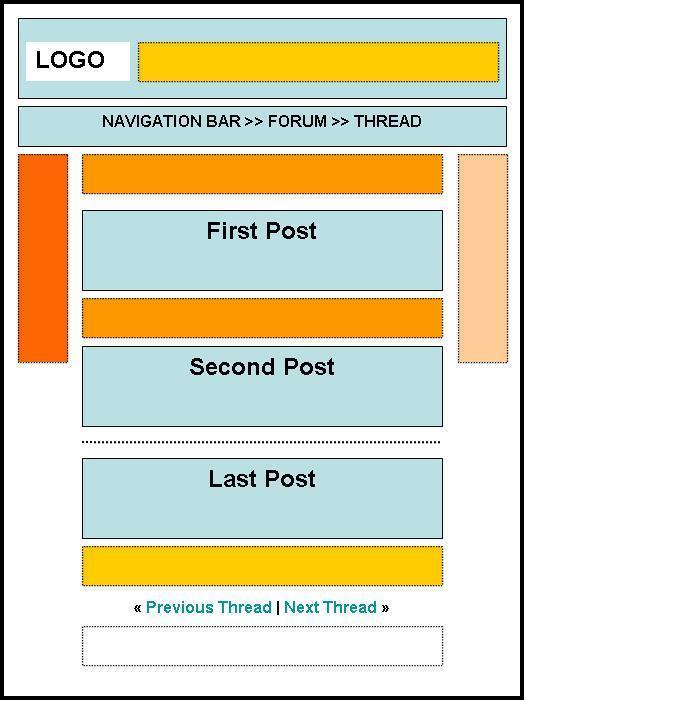
    Provides fairly general but helpful tips on the best places to add Google ads within your Web pages. Also includes a Web page “heat map” that illustrates ideal placements on a sample page layout. Here's an enlarged version of the heat map, too. The darker orange colors represent the strongest performance and fade to lightest that represents the weakest performance. Note that each page is truly different, and it's important to fine tune your pages based on your site's unique content and visitors. [Article/tutorial by Google AdSense Help Center.]

For ad placements for forum sites along with a Forum Heat Map, see the section below, Optimizing AdSense for Forum Sites.


...

Tutorials, Tips on Using AdSense Competitive Ad Filters for Optimization


While some of the listings within Tutorials, Articles on AdSense Optimizing also cover filtering ads, these listings are specifically about this topic. Should you filter out MFAs and low-paying ads in addition to competitors? Many feel it's worthwhile and increases their earnings, while some don't. See these articles and forum discussions to help you decide.

  • Competitive Ad Filter
    Google's official help, support information about the AdSense Competitive Ad Filter. Includes how to use it, how to locate the URLs of the ads you wish to filter without clicking on the links (important!), and more. [Website section: Google Help Center.]
  • Filtering Ads
    Index page listing all the FAQs and information about filtering ads within Google AdSense. This is Google's official help, support information. [Website section: Google Help Center.]
  • To Filter or not to Filter: Google says I filter too much...
    Discussion of Google's Optimization Team's monthly optimization report that always seems to tell everyone to reduce the number of filters in their competitive ad filter. Discusses using competitive ad filters for low-paying ads and MFAs, not just for competitors. Excellent tips on using an Excel spreadsheet:
    Keep track of your filter list in an Excel sheet. Upon entering look up once other relevant information, e.g. registrant or target IP address. Then determine whether these guys are annoying, bad or really bad. ;-) When you run out of space, throw out the annoying ones first. If you still need more space, have a look at the bad ones' Alexa charts. Often, from the chart you can already see whether they are still actively advertising (in this case you see a spike in traffic). Then you may be able to release the sites in question as well. Never release the really bad sites. They will keep on advertising. Maybe they are just pausing their campaigns and do the domain-switch thing...
    More insight, ideas, and discussion here, too. [Forum thread beginning 10/16/2007 - ongoing, WebmasterWorld.]
  • Google AdSense: How did I Increase My AdSense Revenue with SAME CTR?
    Tremendous insight here on how the author had “done everything right” with keyword-rich content, good SEO, and more, but he still had low earnings. He carefully analyzed his site's ads to find consistently low-paying ads inundating his site. This article goes into detail about how he figured all this out and then how he solved the problem. Fantastic article and unique insight and helpful ideas here. A must-read article on AdSense.[Article/tutorial dated 12/15/2006, by Raj, BlogHASH.]
  • Using the Competitive Ad Filter to Increase AdSense Earnings
    Blog post that explains how bad MFA sites are for your site visitors that click on MFA site ads, in addition to negatively impacting your AdSense earnings. Editor note October 2007: Although Google has taken action to ban MFA sites since this blog post was written, there are still plenty out there. [Article/tutorial dated 11/04/2006, by John Chow, John Chow dot Com.]
  • What does YOUR Filter Look Like?
    In addition, “What types of sites end up there, and are there any trends you notice?” In addition to responses about filters, you'll find other tips, such as using Excel to track your filters. Some tell what and why they filter certain ads, such as direct competitors, parked domains, scams and email harvesting schemes, eBay, 'get rich quick' schemes and others. Also a lively debate on whether or not it really matters to filter out ads - pros and cons. [Forum thread beginning 07/27/2007 - ongoing, WebmasterWorld.]
  • Why filter MFA and Directory Sites?
    Excellent discussion on the pros and cons of using AdSense Competitive Ad filters to block MFAs.


...

Tutorials, Tips on Optimizing AdSense for Forum Sites


  • Getting Your Forum Site to Perform Well with AdSense
    Using MegaGames Forum as an ongoing forum site case study example, you'll find more helpful tips in this blog post from Google AdSense. Topics: The welcome box ad, the forum post ad, blending colors and breaking down borders, and improving ad relevance with section targeting. [Article/tutorial dated 07/26/2007, by Magnus Yang - AdSense Optimization Team, Inside AdSense (official Google AdSense Blog).]
  • Six AdSense optimization tips for forums
    Helpful blog post on optimizing a forum site for AdSense. Great insight here, along with a Forum Heat Map showing the strongest placement through the weakest placement. Topics covered: the importance of ad format for multiple ad units; Display your ad units where repeat users will notice them; Place a leader board immediately after the last post; Use horizontal link units; Opt-in to image ads; Be sensitive to your forum community. [Article/tutorial dated 10/07/2005, by Sandra - AdSense Publisher Support, for Inside AdSense (official Google AdSense Blog).]
  • Forum Optimization for Better AdSense Performance
    Short concise tips on where, how to optimize your forum site for AdSense - AdSense placement tips with a welcome ad box and within forum posts, handling colors and borders. [Article/tutorial dated 07/27/2007, by Arnold Zafra, for Search Engine Journal.]

top‘On this page’ menu


...

Template blog 3 column

Template blog 3 column
Download

Thanks for download 3 columns XML template blogspot, wordpress and other web design
Terimakasih telah mendownload XML template 3 kolom untuk blogspot wordpress dan lain-lain disain website dan web hostig
Thanks for download 3 columns XML template blogspot, wordpress and other web design
Terimakasih telah mendownload XML template 3 kolom untuk blogspot wordpress dan lain-lain disain website dan web hostig
...

Template blog 4 Kolom

Download XML Template blogger 4 kolom

DOWNLOAD HERE

Thank you for downloading 4 columns XML blog template
Terimakasih telah download Blogger blogspot wordpress 4 kolom

Thank you for downloading 4 columns XML blog template
Terimakasih telah download Blogger blogspot wordpress 4 kolom

Thank you for downloading 4 columns XML blog template
Terimakasih telah download Blogger blogspot wordpress 4 kolom

Thank you for downloading 4 columns XML blog template
Terimakasih telah download Blogger blogspot wordpress 4 kolom

Thank you for downloading 4 columns XML blog template
Terimakasih telah download Blogger blogspot wordpress 4 kolom

Thank you for downloading 4 columns XML blog template
Terimakasih telah download Blogger blogspot wordpress 4 kolom
...

Google AdWords Tutorials, Tools, Newsletters, Web Sites & Blogs, Other Resources


...